Image Resolution - Print vs. Web
It looked great on my screen… until it was printed.
Whether you’re creating a business card, brochure, banner, website, social media graphic, or presentation, understanding image quality can save you time, money, and frustration.
Let’s break down the two biggest issues I see every week: copyright and image resolution.
One of the most common conversations I have with clients starts with a simple question:
“Why does my logo look blurry?”
Or…
“I downloaded this image from Google. Can we use it?”
Sometimes the answer is yes.
Most of the time, it isn’t.
Google Is Not a Free Image Library
Google doesn’t own the images it displays.
Google simply indexes images from websites across the internet.
That means when you right-click and save an image from Google Images, you’re usually downloading someone else’s copyrighted work.
Why that’s a problem
Using copyrighted images without permission can lead to:
- Copyright infringement claims
- Licensing fees
- Requests to remove the image
- Legal issues for your business
Even if an image doesn’t have a watermark, that doesn’t mean it’s free to use.
Where Should You Get Images Instead?
There are plenty of legitimate sources for high-quality photography and graphics.
Some of my favorites include:
These services provide licensed content specifically intended for commercial use.
Many also include:
- Vector illustrations
- Icons
- Backgrounds
- Patterns
- Mockups
- Design templates
Why Vector Graphics Are So Valuable
Whenever possible, I prefer working with vector artwork.
Unlike traditional photos, vector files are built from mathematical paths instead of pixels.
That means they can be enlarged from the size of a business card to the side of a building without losing quality.
Vector files also make customization much easier.
For example, I can often:
- Change colors to match your brand
- Modify shapes
- Edit text
- Combine artwork into something unique
Common vector file types include:
- AI
- EPS
- SVG
- PDF (sometimes)
Why Images Look Fine on Your Screen But Print Blurry
This comes down to resolution.
Resolution describes how much detail an image contains.
The more information an image has, the sharper it will appear when printed.
Understanding DPI
DPI stands for Dots Per Inch.
It refers to how many tiny dots of ink a printer places within one inch of paper.
The higher the DPI, the more detail can be reproduced.
As a general guideline:
Web & Digital
- Typically displayed around 72 PPI
- Designed for monitors, phones and tablets
- Optimized for fast loading
- Smaller file sizes
- Typically prepared at 300 DPI
- Designed for brochures, flyers, business cards, signs and banners
- Produces crisp text and sharp images
Although you’ll often hear people say “72 DPI” for web images, the more technically accurate term is PPI (Pixels Per Inch) because screens display pixels rather than printed dots. In everyday conversation, however, the terms are often used interchangeably.
Why File Size Matters
One of the very first things I check when a client sends me a logo is the file size.
While it isn’t a perfect measurement, it’s often the first clue.
For example:
- A logo that’s only 35 KB is probably too small for professional printing.
- A logo that’s several megabytes (MB) usually contains much more image data.
Small file size doesn’t automatically mean poor quality, but it often tells me I should investigate further before sending anything to print.
Bigger Isn’t Always Better
A common misconception is that simply making an image physically larger improves its quality.
Unfortunately, that’s not how digital images work.
If you enlarge a low-resolution image, you’re simply stretching the existing pixels over a larger area.
The result is usually:
- Blurry edges
- Pixelation
- Soft text
- Jagged lines
No software can magically recreate detail that was never there to begin with.
How to Check an Image Yourself
Windows makes this easy.
Microsoft Photos
Open the image.
Right-click the image → ⓘ File Info → Details
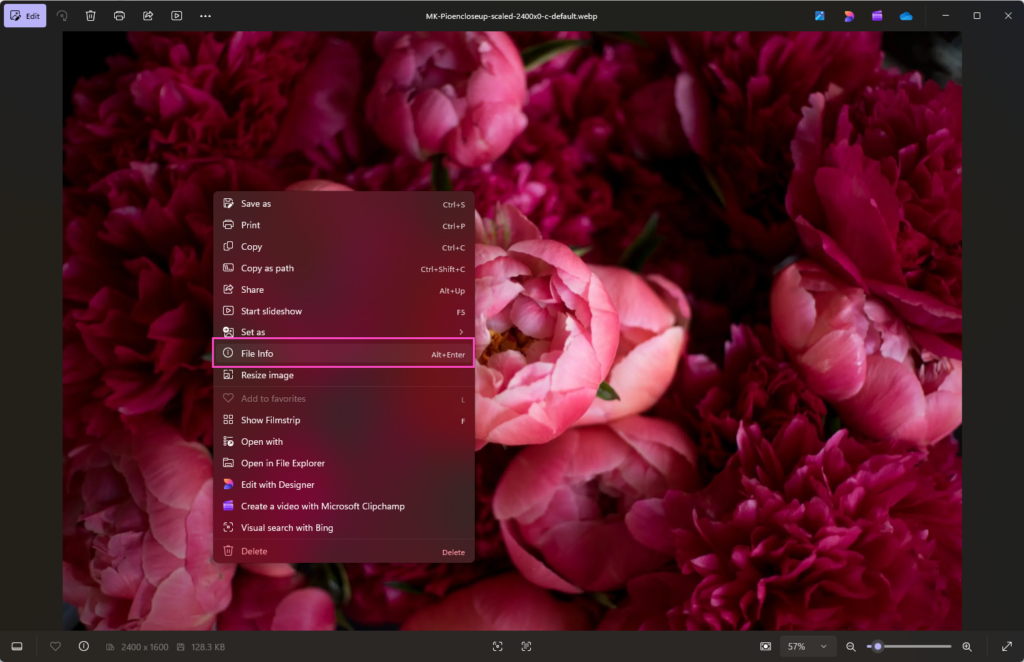
You’ll typically see:
- Pixel dimensions
- File size
- File type
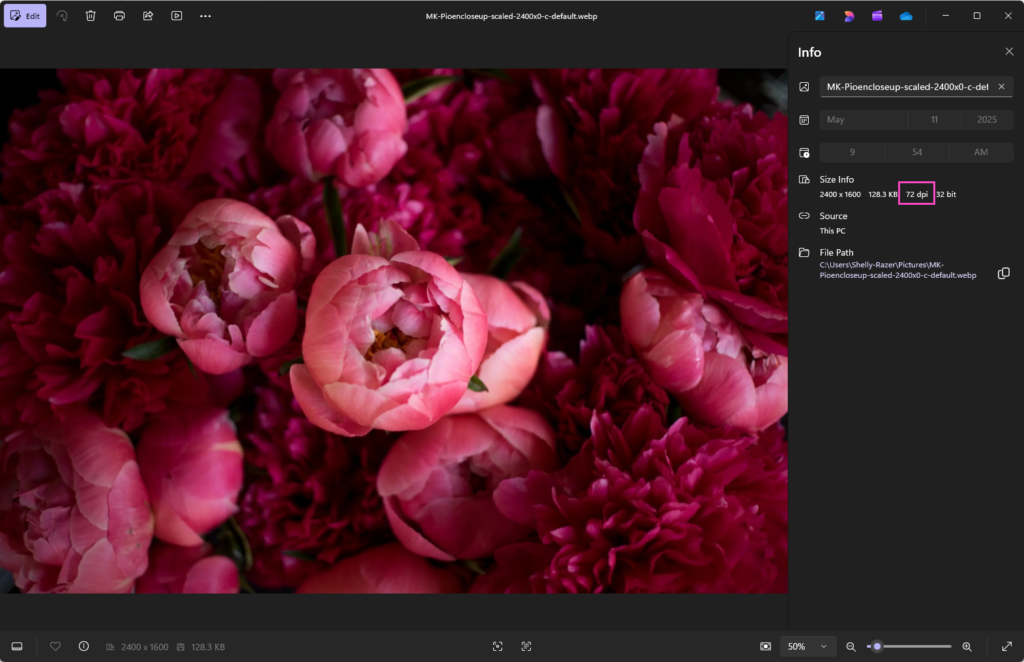
This provides additional information including dimensions and sometimes resolution.
Which File Types Should You Use?
Best for Print
- AI
- EPS
- TIFF
- High-resolution PNG
- High-quality JPEG
Best for Digital
- JPG / JPEG
- PNG
- WebP
- SVG (logos and icons)
Each file format serves a different purpose, which is why keeping your original artwork is so important.
Save the Original Logo
One of the biggest mistakes businesses make is losing their original logo files.
Instead, they end up using:
- A Facebook profile photo
- A screenshot
- A website download
- A copy copied from another document
Unfortunately, each time an image is copied or exported incorrectly, quality can be lost.
Always keep your original logo package somewhere safe.
When You’re Not Sure…
Image resolution can get technical quickly.
If you’re unsure whether an image is suitable for print, it’s always better to check before ordering 500 brochures or a 6-foot banner.
I regularly help clients identify the correct files, source licensed imagery, locate vector artwork, and prepare graphics that look just as good in print as they do online.
A few minutes spent using the right image can save hours of frustration and the cost of reprinting materials.
If you are unsure where to start, feel free to reach out.
Need a Second Set of Eyes?
Sometimes a quick review can save hours of frustration and costly reprints. If you’re unsure whether your files are ready for print or web, I’d be happy to help.